
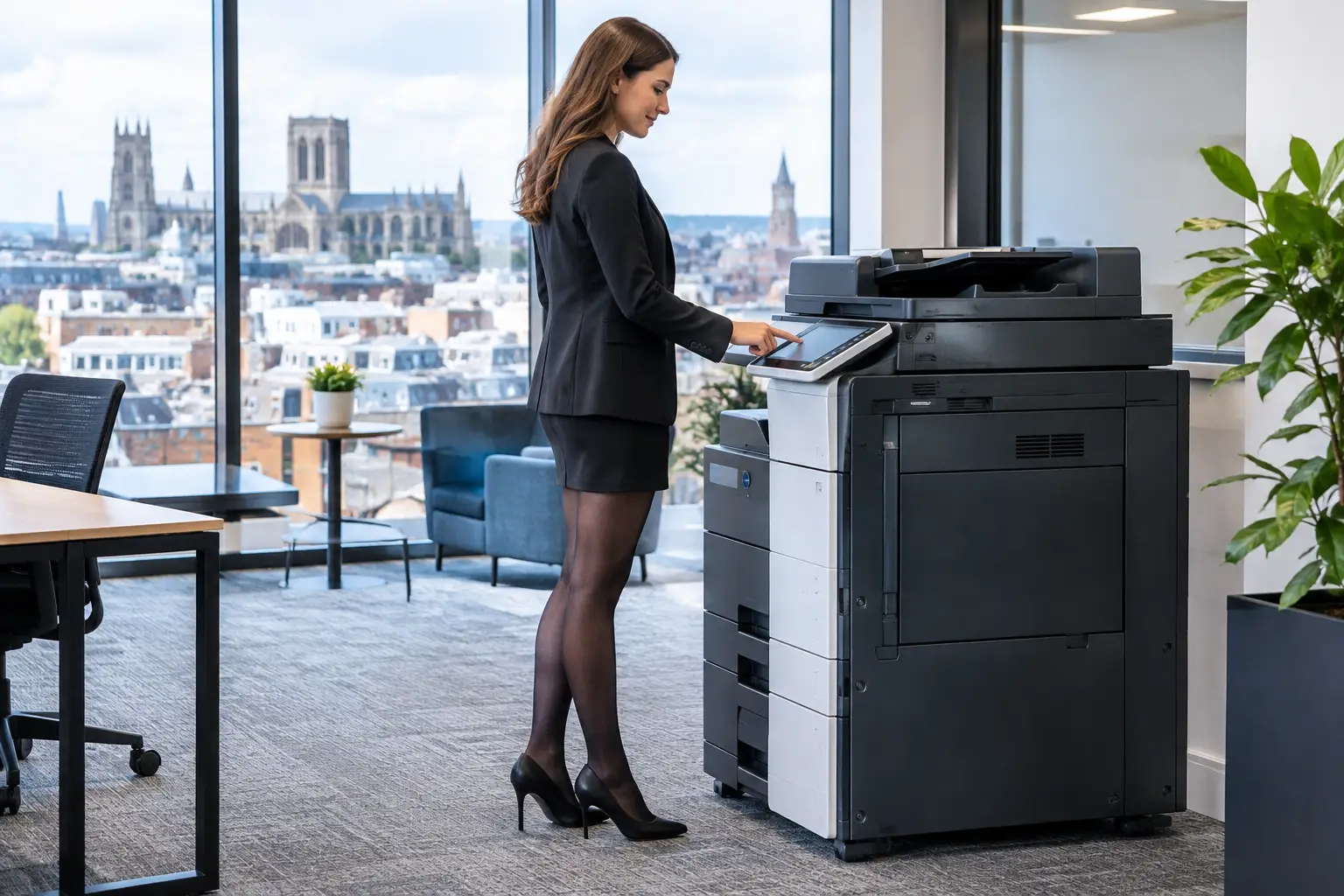
A Bizhub device review should start with the work around the machine, not the specification sheet. For many organisations, a multifunction device is where invoices are captured, contracts are printed, records are scanned and teams lose time when something goes wrong. The right choice therefore depends on document volumes, user behaviour, security requirements and the support model behind the device.
Konica Minolta Bizhub devices are widely used across offices, schools, professional services firms and public-sector environments because they combine printing, copying and scanning in one platform. The range is broad, from compact machines for smaller teams to higher-volume devices supporting demanding shared environments. That flexibility is a strength, but it also means selecting the correct configuration matters.
Bizhub device review: strengths for the modern workplace
The central appeal of a Bizhub device is its role as a document hub rather than simply a copier. A well-configured device can print reliably, scan directly into approved business systems, route documents to defined locations and help administrators understand how the fleet is being used.
For a busy office, this can reduce the number of disconnected processes surrounding paper. Instead of scanning a supplier invoice to an inbox, renaming the file and forwarding it for approval, staff can use a defined scan workflow with a consistent file name, destination and format. The benefit is not just speed. It is greater control over where information goes and who can access it.
The touchscreen interface is another practical advantage. It can be tailored with shortcuts for common jobs, such as scan to a department folder, secure print release or copying identity documents. This is useful where teams have varied levels of technical confidence. A device that asks users to follow too many steps will quickly encourage workarounds, which can undermine security and create avoidable calls to IT or facilities teams.
Print and image quality are generally well suited to day-to-day business documents, presentations, internal communications and customer-facing materials. Colour-capable models can be particularly useful for organisations that need marketing collateral, training packs or proof documents in-house. However, a device intended mainly for everyday office output is not automatically the right answer for specialist production work, unusual media or consistently high-volume colour runs. Those requirements need a more detailed assessment of media handling, finishing and duty cycle.
Where the device choice needs more scrutiny
No single Bizhub device is right for every location. A smaller office may value a compact footprint and straightforward scan-to-cloud capability, while a central print area may need faster output, larger paper capacity and finishing options. Buying or deploying beyond the real requirement can leave an organisation with unnecessary complexity; choosing too small a machine can lead to queues, frequent replenishment and shorter equipment life.
Volume is often misunderstood. The relevant question is not only how many pages an organisation prints in a month, but when and where they print them. A finance team may create a sharp spike around month-end. A school or training provider may need large batches at set points in the week. A legal team may require dependable black-and-white output but also secure handling of confidential bundles. A fleet assessment should look at these patterns before a device is specified.
Paper formats and finishing also deserve attention. If a team regularly creates booklets, reports or folded documents, the required finishing should be considered at the outset. Retrofitting capability later is not always practical. Conversely, a device with multiple advanced functions may see little use in a small office where most work is digital and only occasional printing is required.
The physical environment matters too. Device placement affects user convenience, network access, power requirements, noise and confidentiality. Placing one high-capacity device in an open area may appear efficient, but it can create a privacy issue if sensitive documents are left in output trays. In some settings, a smaller secure device closer to the relevant team is the better operational decision.
Security is part of the review, not an optional extra
Multifunction devices hold information while they process jobs, connect to the organisation’s network and often provide access to cloud services or shared folders. They should be treated as managed endpoint devices, not standalone office equipment.
Useful controls include user authentication, secure print release, role-based access to functions, encrypted communications and audit trails. Secure release is especially valuable in shared spaces because documents print only when the authorised user is present. It reduces uncollected output and helps prevent confidential payroll, HR, customer or financial information being viewed by the wrong person.
For IT teams, the quality of integration is as important as the available features. A device should fit the organisation’s identity management, network policy and information governance arrangements. Scan destinations should be deliberate and controlled, rather than configured as a collection of personal email addresses and unmanaged folders.
Administrators should also consider ongoing maintenance of the security position. Firmware, configuration, user permissions and cloud connections need oversight throughout the device lifecycle. This is one reason a managed support relationship can be more valuable than a hardware-only purchase. It establishes responsibility for monitoring, updates and prompt intervention when a fault affects the wider workflow.
Scanning and workflow are often the deciding factors
Printing tends to receive most of the attention during procurement, yet scanning is frequently where a multifunction device delivers its greatest operational value. The ability to scan accurately is only the beginning. The more useful question is what should happen next.
A document workflow can capture a file, recognise key information, apply a naming convention and send it to the appropriate system or approval route. For example, a delivery note might be scanned to a records location, while an invoice could enter an accounts process. The device becomes the first controlled point in a digital process rather than a bottleneck between paper and a manual inbox.
That said, workflow tools should be designed around existing responsibilities and exceptions. Automation will not improve a poorly defined process. If staff do not know where a document belongs, or if approval routes change regularly without ownership, adding software can simply move confusion into a different system. Start with the documents that create the most repetitive administration and build from there.
Cloud print can offer similar practical benefits for distributed or hybrid teams. It can simplify printing from managed devices, provide a central view of usage and reduce dependence on local print servers in suitable environments. The best approach depends on the organisation’s infrastructure, data requirements and the applications staff use each day.
Support and lifecycle management shape the experience
A Bizhub machine can be capable on paper and still disappoint if support is slow, consumables are not monitored or users have not been shown how to use the main functions. Device performance is a service outcome as much as a product outcome.
A good managed print arrangement begins with visibility. Usage monitoring can identify underused devices, excessive colour printing, recurring faults and locations where capacity is too limited. It also helps an organisation plan replacement or refurbishment at the appropriate point, rather than reacting after repeated downtime.
Local support is particularly relevant where printing remains business-critical. Organisations across Yorkshire and Northern Lincolnshire may benefit from a provider that can assess the site, deploy equipment properly and remain accountable when day-to-day issues arise. HAD-COPY approaches this as a complete environment: device selection, print management, security, workflow configuration, training and ongoing maintenance should work together.
Refurbished equipment can also be a sensible route for organisations with clear requirements and a preference for a circular-economy option. The suitability depends on expected workload, required features and the availability of proper preparation, maintenance and support. Refurbished should not mean unsupported or unknown-condition equipment; it should be assessed against the same operational standards as a new deployment.
How to assess a Bizhub device for your organisation
A productive review brings operations, IT, finance and the people who use the devices into the same conversation. Operations can explain bottlenecks, IT can set security and integration requirements, and finance can identify where uncontrolled output or fragmented servicing is creating waste. End users provide the evidence that is often missed: which documents are difficult to scan, when queues form and which tasks prompt them to find a workaround.
It is helpful to test likely daily jobs rather than judging a device only by a demonstration. Print a secure document, scan a multi-page file to its intended destination, copy a mixed document set and check how straightforward it is for a new user to complete each task. Consider replenishment, accessibility and recovery from common paper-handling issues as well. These details shape adoption more than a headline specification.
The strongest device decision is rarely the one with the longest feature list. It is the one that gives staff a dependable way to handle documents, gives IT appropriate control and gives the organisation clear visibility of its print environment. Start with the work your teams need to complete tomorrow morning, then select the Bizhub configuration and support model that makes that work easier to manage.


