
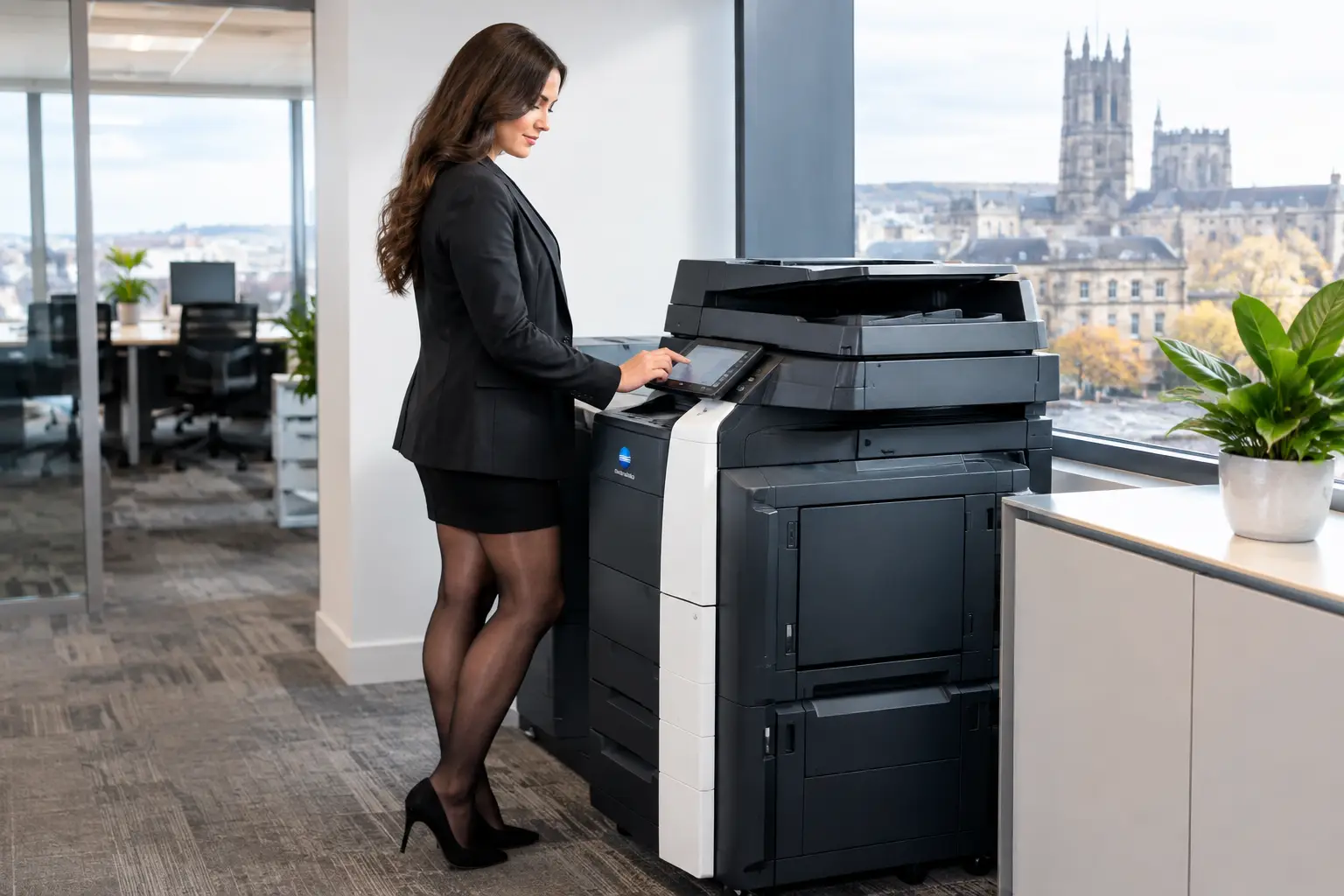
A shared multifunction printer can quickly become the most manual part of a digital workplace. A colleague scans an invoice, saves it with an unclear name, sends it to the wrong inbox, and someone else spends time finding, checking and filing it. To automate scan workflows is to replace those avoidable steps with a controlled route from paper to the right system, folder or person.
For operations, finance and IT teams, the benefit is not simply faster scanning. It is less rekeying, fewer misplaced documents, better auditability and a more consistent way to handle information that still arrives on paper. The right approach also gives users a simple experience at the device, without creating another administrative burden for IT.
What it means to automate scan workflows
Scan workflow automation connects a multifunction device to the processes that follow a scan. Instead of treating the scan as a standalone file, the device and workflow software can identify the user, apply a document type, capture key information and send the file to a defined destination.
That destination might be a finance inbox, a secure network folder, a document management platform, a case management system or a cloud storage location. Rules can apply a standard file name, convert documents to searchable PDF, separate batches using cover sheets, or notify a team once a document has arrived.
The principle is straightforward: employees should make only the decisions that require judgement. The system should handle repeatable tasks such as routing, naming, formatting and logging. A well-designed workflow does not force every department into one process. It creates enough structure to make information easier to find and manage, while fitting the way each team actually works.
Start with the document journeys causing the most friction
The best automation projects begin with a small number of high-volume, repeatable document journeys. Trying to redesign every paper process at once can delay progress and make user adoption harder. Start where the time loss, compliance risk or search effort is most visible.
Accounts payable is often a strong candidate. Invoices can be scanned to a controlled queue, checked for readability and routed to the relevant finance process. HR teams may need secure scanning for employee records, with restricted access from the point of capture. Operations teams may scan delivery notes, job sheets or quality paperwork that needs to be available against a customer, order or project reference.
Ask practical questions before choosing software or changing device settings. Who scans the document? What information is needed to identify it? Where should it be stored? Who needs access? How long must it be retained? What happens when the document is incomplete, unclear or sent to the wrong route?
This exercise often exposes a wider issue: people are using email as a substitute for a document process. Email is familiar, but it can create duplicate copies, inconsistent filing and weak visibility of who has handled the document. Automation should reduce unnecessary email traffic, not merely send scanned attachments more quickly.
Design the experience at the device
A workflow succeeds or fails at the screen of the multifunction device. If staff have to enter long file paths, select from dozens of scan options or remember complex naming rules, they will find workarounds. Those workarounds usually reintroduce the very risks the project was meant to remove.
Keep the device interface focused on common actions. A user might see clearly labelled options such as “Scan invoice”, “Scan delivery note” or “Scan to secure project folder”. After selecting an option, they may be asked for a supplier name, job number or reference only where that information cannot be captured automatically.
User authentication is particularly useful here. When a person signs in with a card, PIN or network credentials, the workflow can apply their identity automatically. This supports accountability and can route scans according to the user’s department, permissions or approved destinations. It also avoids the security weakness of open scan-to-email functions that are available to anyone standing at the device.
There is a trade-off. Too little validation can result in badly classified records; too much validation makes scanning slow. For many organisations, the right balance is a short device prompt combined with automated extraction or review rules in the background.
Build security into every scan route
Scanning is often discussed as a productivity feature, but it is also a document security issue. A scanned contract, medical record, employee file or customer form can be as sensitive as any digital document created at a desk. The workflow needs protection from capture through to storage.
Begin with access control at the device. Named user authentication helps prevent anonymous scanning and produces an audit trail of who submitted a document. Access permissions should limit users to the scan functions and destinations relevant to their role. A member of the finance team may need a different set of options from a visitor, warehouse colleague or temporary worker.
Data should be protected while travelling from the device to its destination, and the destination itself must use the appropriate permissions and retention controls. If scan-to-email remains necessary, establish when it is allowed, who can use it and whether external recipients need additional safeguards.
Do not overlook device configuration and maintenance. Multifunction devices are connected endpoints on the network, not passive office equipment. Regular firmware management, appropriate network settings, secure administration and monitored support are part of a safe scan environment. This is especially relevant where a fleet includes devices from different ages or locations.
Make documents searchable and useful
A scanned image is only the start. Optical character recognition, commonly known as OCR, can turn printed text into searchable content. That makes it easier for staff to locate a document by supplier, reference number, date or phrase instead of relying on a folder name someone entered months earlier.
For structured documents, capture technology can go further by extracting fields such as invoice numbers, purchase order references or customer details. This can reduce manual data entry, although it is not a reason to remove every human check. Poor-quality originals, handwriting, unusual layouts and supplier variations can affect accuracy. Build exception handling into the process so uncertain documents are directed to the right person for review.
File standards matter too. Agree on formats, naming conventions and storage locations before automation goes live. A searchable PDF may be suitable for general business records, while a process that feeds another system could require a specific format or defined data fields. Consistency makes later retrieval, auditing and retention management much easier.
Integrate scanning with the systems people already use
A scan workflow should support the systems that run the organisation rather than create another isolated repository. Depending on your environment, this may mean connecting scanning to cloud storage, document management, accounts software, customer records or a line-of-business platform.
Integration does not always mean a complex, fully automated connection on day one. A secure, structured scan queue can be a major improvement over unmanaged email attachments. From there, organisations can add metadata capture, approval steps and deeper system integration as the process matures.
Cloud-based workflows can help teams working across offices or remotely, provided governance remains clear. The convenience of accessing documents from anywhere needs to be matched by clear ownership, permissions and retention policies. IT should also understand where documents are held, how access is controlled and how the process performs if internet connectivity is interrupted.
Measure outcomes after go-live
Automation is not finished when the buttons appear on the device. Review the workflow after users have had time to work with it. Look at the number of scans processed, routing errors, rejected files, time spent on manual filing and how quickly teams can retrieve documents when needed.
User feedback matters as much as the technical measures. A finance clerk may identify a missing supplier field that creates extra work, while an office manager may see that a common scan route should be available on an additional device. Small adjustments can make a meaningful difference to adoption.
It is also worth reviewing device capacity. A workflow that performs well for occasional invoices may need different settings, feeder capacity or production equipment when processing large batches of archived records. The right solution depends on document volumes, paper condition, security requirements and the systems receiving the files.
For organisations across Yorkshire and Northern Lincolnshire, HAD-COPY can assess the devices, software, security settings and support arrangements needed to make scanning part of a controlled document environment rather than a daily workaround.
A good scan workflow should feel almost invisible to the person using it: choose the document type, confirm the essential detail and let the process carry the information safely to where the business needs it.


