
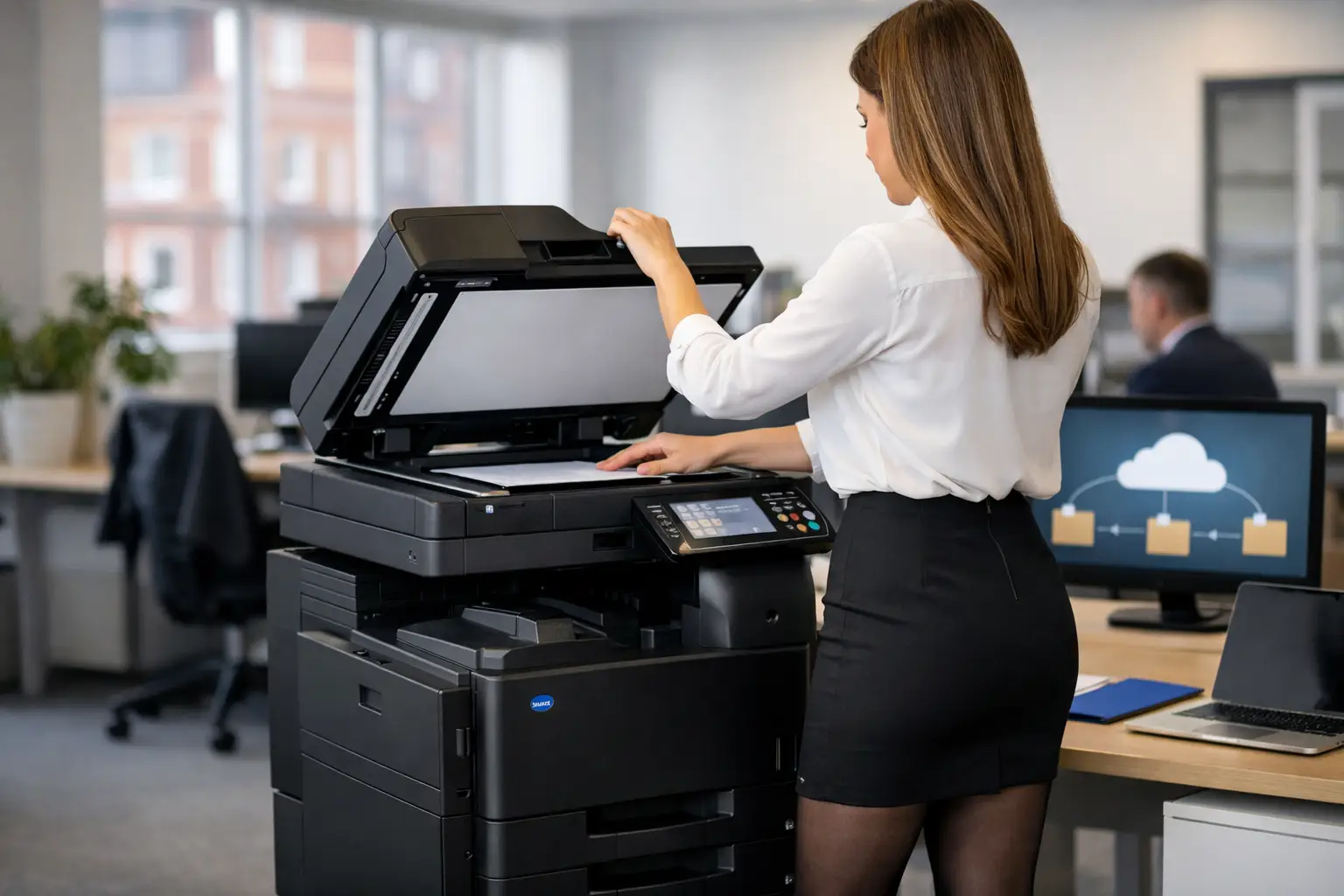
A signed delivery note left on a multifunction printer is not just an inconvenience. It can delay invoicing, create a gap in an audit trail and expose customer information to the wrong person. When organisations scan documents to SharePoint directly from the device, paper can enter the right business process at the point it is captured - provided the workflow has been designed properly.
For office and IT teams, the objective is not simply to replace a filing cabinet with a shared folder. It is to make document capture quicker, more consistent and more secure, while giving staff a process they will actually use. That requires the right combination of multifunction devices, SharePoint structure, access controls and ongoing support.
Why scan documents to SharePoint?
SharePoint is already the working document environment for many UK organisations using Microsoft 365. Teams use it to store policies, project files, HR records, purchase documentation and client information. Sending scanned documents straight into the relevant SharePoint library removes a common weak point: scanning to email, downloading an attachment and then relying on someone to save it in the correct place.
A direct workflow can reduce handling time and improve consistency. A finance assistant can scan an invoice to an accounts payable library; a site manager can file a signed worksheet against a job record; an HR colleague can send a form to a restricted personnel area. The document is available to authorised colleagues without creating duplicate copies in inboxes or on local drives.
The commercial benefit is often most visible in high-volume processes. Even a few minutes spent naming, forwarding and filing each document becomes a sizeable administrative cost across a busy team. Faster capture also means information reaches the people who need it sooner, which can support quicker approvals, invoicing and customer responses.
That said, SharePoint is not a substitute for a document management strategy by itself. A poorly planned library simply moves disorder online. If staff cannot find documents, cannot tell which version is current, or have access to information they should not see, the workflow needs attention before more scanning is added.
Start with the document process, not the scanner
The most effective projects begin by identifying what happens to a document after it is scanned. Ask who receives it, where it belongs, how it should be named, whether it needs approval and how long it must be retained. These questions prevent a familiar outcome: a library containing thousands of files called Scan001.pdf.
Consider a purchase invoice. A useful route may be a dedicated SharePoint library with supplier, invoice number, date and cost centre captured as metadata. Depending on the volume and complexity, this information might be entered at the device, read using OCR and extraction software, or added during a controlled review step. The right choice depends on accuracy requirements and the quality of the original paperwork.
For lower-volume records, a simple scan-to-library button and a clear naming convention may be enough. For a busy accounts department or operations team processing varied forms, automated classification and validation can justify the additional setup. Automation is valuable when it removes repeatable work, not when it makes an occasional task harder for users.
Map document types and destinations
Avoid offering staff one generic ‘Scan to SharePoint’ option. It encourages users to choose a convenient location rather than the correct one. Create clear, role-appropriate destinations such as invoices, delivery notes, employee forms, project records or customer correspondence.
Each destination should have an owner. That person does not need to manage the technology, but they should be accountable for deciding what belongs there, how long it is kept and who requires access. This is particularly important where documents contain financial, personal or commercially sensitive data.
Set up SharePoint for controlled filing
A sensible SharePoint structure balances easy retrieval with governance. Libraries work well when they represent a clear business function, rather than becoming broad dumping grounds. Folders can be useful where they reflect how a team naturally works, but metadata is often better for filtering across clients, sites, departments or dates.
Permissions need equal care. The account used by the multifunction device should have only the access required to place documents in the intended destination. It should not have broad edit rights across unrelated libraries. Where possible, use a dedicated service account or supported authentication method, rather than an individual employee’s Microsoft 365 credentials. This avoids disruption when someone changes role or leaves the organisation.
Retention and versioning should reflect the record type. A scanned contract, personnel record or quality document may need formal retention rules and restricted access. A routine internal form may need much lighter controls. The point is to make those decisions deliberately, with input from the relevant records, compliance or data protection stakeholders.
Choose a scanning route that users can trust
Modern multifunction devices can connect to SharePoint through supported connectors, workflow software or cloud-based print and capture platforms. The best route depends on the device estate, Microsoft environment, security policy and the level of workflow automation required.
For many organisations, the practical experience should be simple: the user signs in at the device, chooses a destination, checks basic scan settings and sends the document. Authentication can help associate activity with the user and restrict available buttons to their department or role. It also reduces the risk of a visitor or unauthorised colleague using a preconfigured route.
Scan settings matter more than they first appear. A 300 dpi PDF is generally suitable for readable business records and OCR, while unnecessarily high resolution creates large files that are slower to process and store. Colour should be reserved for documents where colour carries meaning, such as marked-up plans or identification evidence. Duplex scanning should be the default for double-sided paperwork, helping avoid missing information and reducing manual correction.
Before deployment, test with real examples, not just a clean single-page sheet. Include folded pages, faint copies, mixed page sizes, handwritten notes and typical user behaviour. This reveals whether the feeder, image processing and OCR settings are fit for the documents your team actually handles.
Build security into every stage
Scanning creates a bridge between paper and cloud services, so security must cover the device, the connection and the SharePoint destination. Device sign-in, encrypted transmission and controlled access to scan functions are basic requirements for sensitive workflows. Print devices should also be kept on supported firmware, monitored and maintained as part of the wider IT environment.
The physical process matters too. Configure devices so scanned originals are not left in the feeder, and position equipment where confidential paperwork is not exposed to passers-by. User training should be brief and practical: choose the correct workflow, check the destination, remove originals and report anything that does not look right.
Audit information is helpful when investigating mistakes or meeting governance requirements. Depending on the solution, this may show who scanned a document, when it was captured and which workflow was used. It will not prevent every human error, but it makes errors easier to trace and improve.
Manage the rollout as a workplace change
A technically correct integration can still fail if it is introduced without attention to daily routines. Start with a department where the document types, destination and benefits are clear. Measure the current handling time, error rate and delay to processing, then compare results after the workflow is live.
Give users a small number of clearly named options rather than a complex menu. Place simple guidance at the device during the first weeks, and nominate a local contact who can collect feedback. If users keep bypassing the process, treat that as useful evidence. The workflow may be too slow, the destination labels may be unclear, or a genuine exception may not have been considered.
Ongoing management is just as important as initial configuration. Review failed scans, user permissions, library growth and changes to Microsoft 365 authentication requirements. A managed print and document workflow partner can coordinate device configuration, user support and maintenance with the organisation’s IT team, rather than leaving each element with a different supplier.
What good looks like
A successful SharePoint scanning process is not judged by whether a device can produce a PDF. It is judged by whether documents arrive in the right place, in a useful format, with appropriate access, and without creating extra work for staff.
For organisations across Yorkshire and Northern Lincolnshire, that can mean fewer manual filing tasks, clearer accountability and better control over paper-heavy processes. HAD-COPY approaches this as part of the wider workplace environment: device capability, secure access, document routing, user adoption and dependable support all need to work together.
The best next step is to take one recurring paper process that causes delay or uncertainty and map it from receipt to retrieval. Once that route is working well, expanding it becomes a measured operational improvement rather than another disconnected technology project.


